Help →
Getting started
Papeer is a notes editor. Your notes save themselves, and you have them on your phone and your computer. This article walks you through the first five minutes.
Signing in with a code from your email
Papeer has no passwords. You sign in with your email and a one-time code:
- Open papeer.online/app and type your email.
- Within a minute you get an email with a six-digit code. The code is valid for 10 minutes.
- Type the code into the app. Done — you stay signed in on this device until you sign out.
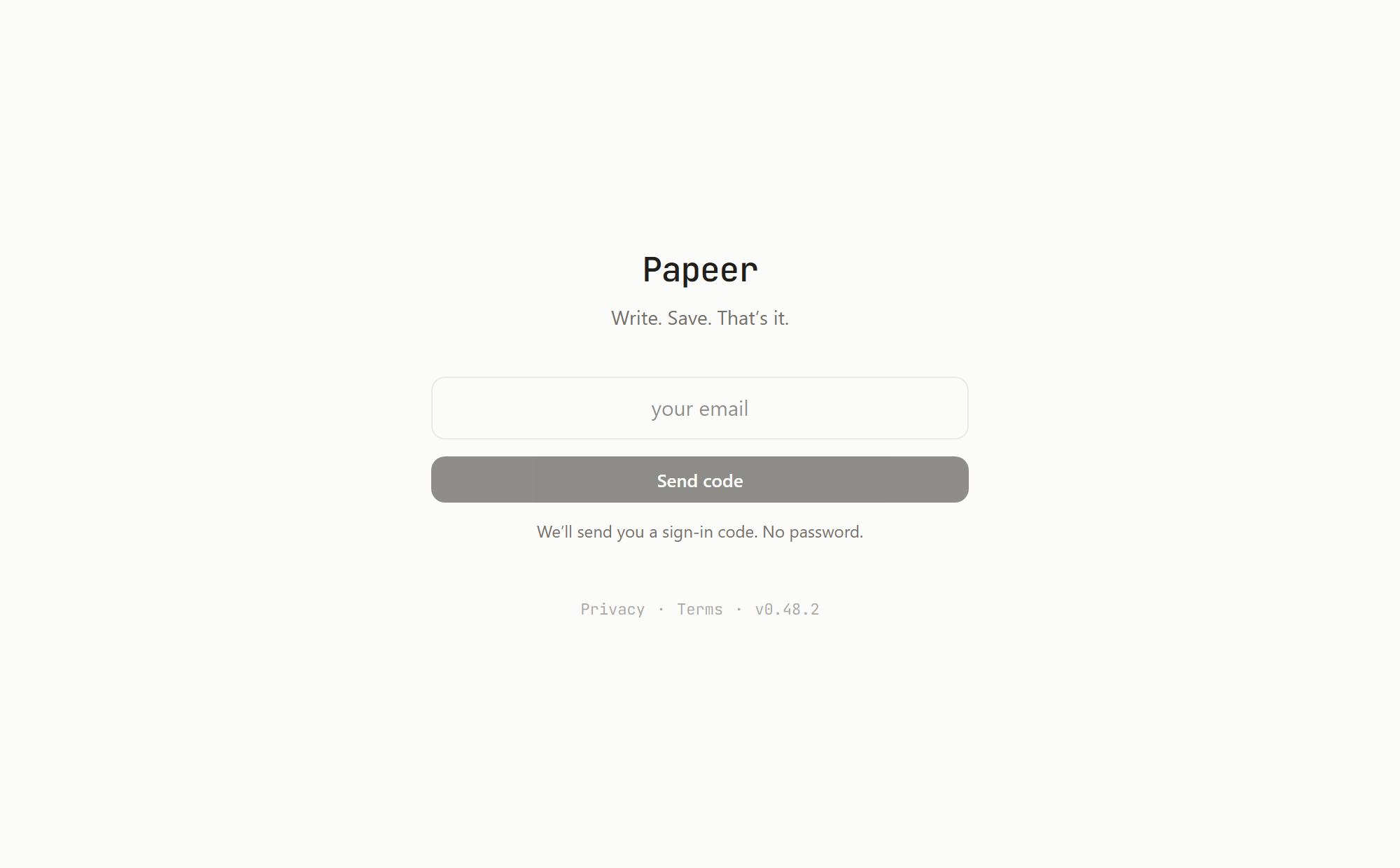
If the code doesn’t arrive, check your spam folder and ask for a new one. After several attempts in a row, Papeer waits a while before sending another — it tells you how long.
Free trial
A new account gets 14 days free with everything Papeer can do. We don’t ask for a card. Two days before the end you get an email; after the free trial ends you can still read and export your notes, and writing comes back with a subscription. Nothing is deleted without an email first. More in the article Account and plan.
Your first document
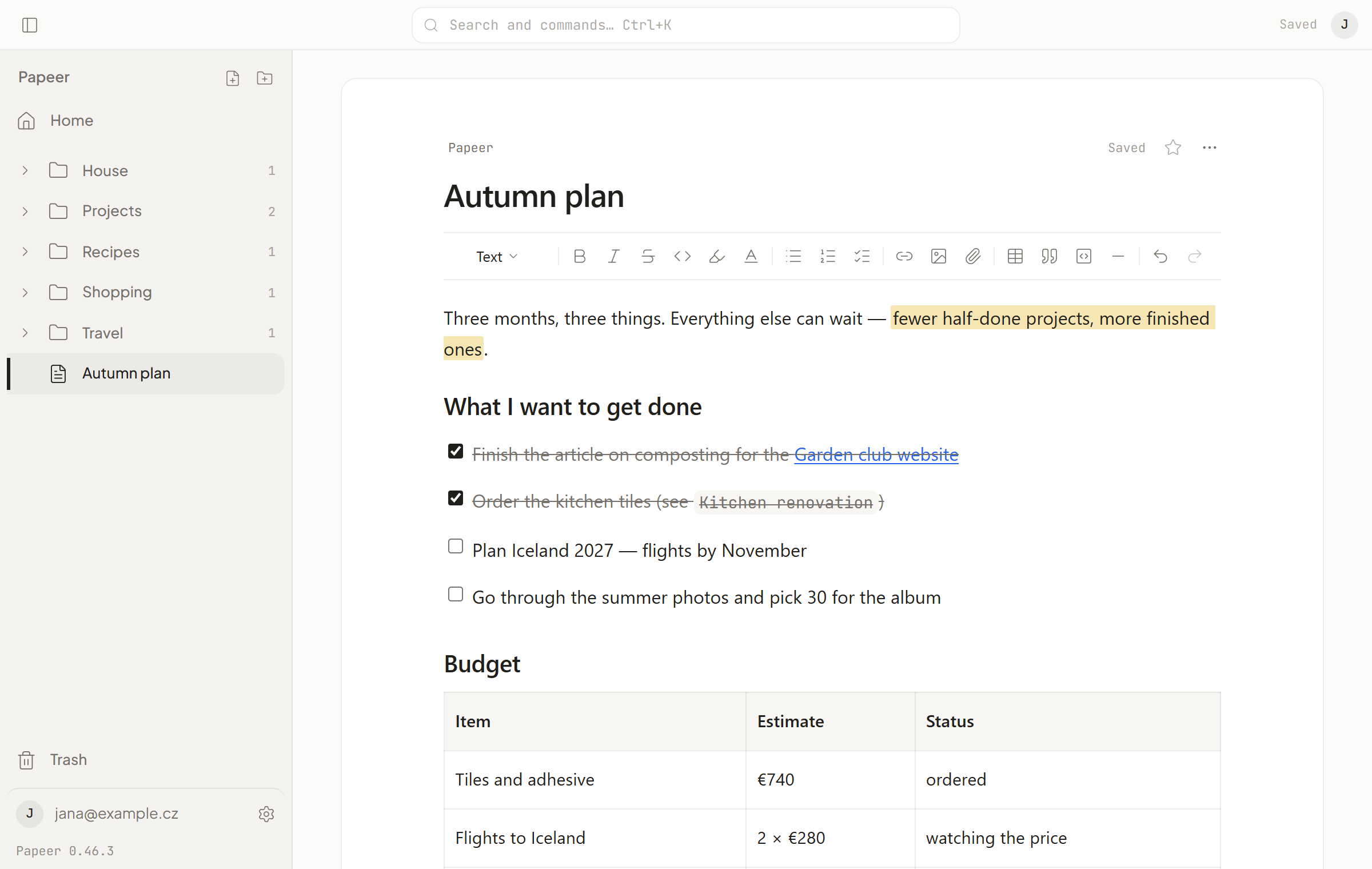
After signing in you see Home — an overview of pinned and recently opened documents. On the left (on a phone under the menu icon) is the sidebar with folders and documents.
- In the sidebar tap + (or press
N) — a new document is created. - Give it a name and start writing. There is no Save button: every change saves itself. The Saved pill at the top right tells you so.
- You create a folder the same way with the button next to Folders, or with the shortcut
Shift+N.
What next
- Documents and folders — moving, pinning, trash.
- Writing — formatting, tables, tasks, links.
- Installing on phone and computer — Papeer as an app with an icon.