Help →
Sharing by link
You can send any document to anyone with a link. Whoever has the link reads the document on the s.papeer.online page — no account, read-only, with images and attachments.
Turning it on
- In the document’s … menu choose Share… (or tap the globe icon in the header).
- Turn on sharing. A link appears — copy it and send it.
- Optionally set a password (at least 6 characters). The visitor enters it once; the link stays the same.
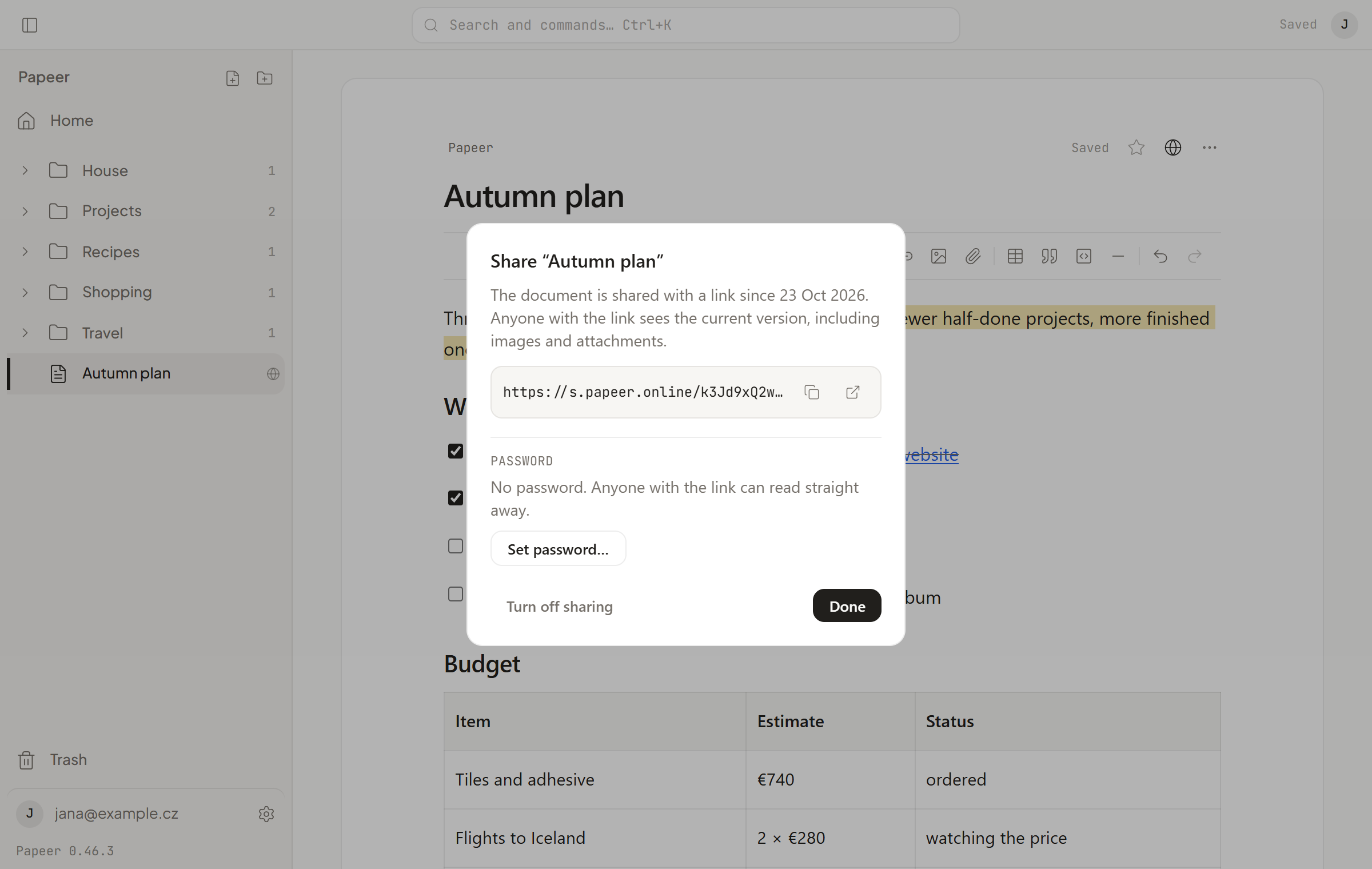
Shared documents have a small globe in the sidebar (with a lock when they have a password). An overview of all of them is in Settings → Shared documents.
What the visitor sees
Always the current text of the document, plus the images and attachments the text links to. Files over 50 MB are not served on the page. Links to your other documents show only as text — they lead nowhere. The visitor sees nothing else from your account.
Turning it off
Turn sharing off in the same dialog. The link stops working straight away. When you turn sharing on again, you get a new link — the old one will never work again. Moving the document to the trash turns the link off too.
Changing the password
Changing or removing the password signs out everyone who unlocked the document before. Anyone who knows the link and tries passwords has to wait after a few mistakes; failed attempts don’t reach you as notifications.
Reporting content
At the bottom of every shared page there is a Report content link. Anyone who comes across something that doesn’t belong on a public link sends the reason to the operator. What may be shared is set out in the Terms.