Help →
Papeer and Claude
Claude (claude.ai and Claude Desktop) can work with your notes directly: read them, create new documents and add to them. Papeer has a connector for this — the MCP standard that Claude supports.
Connecting
- In Claude, open the connector settings (Settings → Connectors → Add custom connector).
- Enter the address
https://papeer.online/api/mcp. - Claude sends you to the Allow access to Papeer page. If you are signed in in the browser, just tap Allow; otherwise you enter your email and a code, as when signing in.
From then on Claude can work with Papeer in the conversation: list the tree, read a document, create a new one, add to the end or the beginning, insert under a heading, attach a small file. Claude can’t delete or move anything.
What Claude sees
Only what it asks for in the conversation — a particular document or the folder tree. Papeer records only the time, the tool and the document path, never the content.
Revoking access
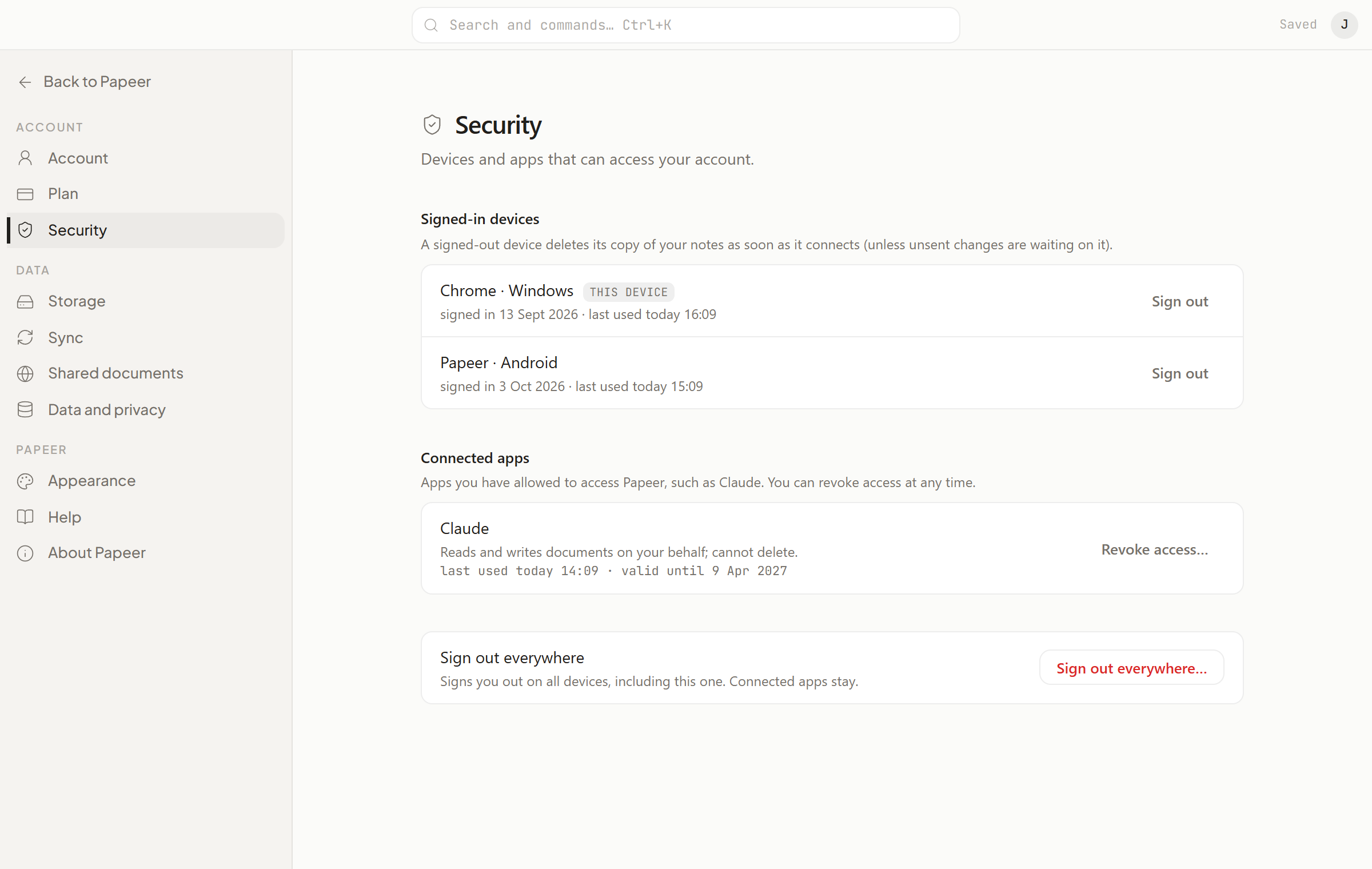
Settings → Security → Connected apps: a list of allowed connectors and the Revoke access button. Otherwise access is valid for 30 days, and Claude quietly renews it for up to 180 days.